Wednesday, September 08, 2010

Bravo for Jolinne

Hi everyone and thanks for stopping by.  Today the MFT design team is celebrating the "greatest hits" from the Jolinne stamp line.  As an added bonus, there is a code good today only.  Receive $5 off ANY Jolinne set by entering the code JOLINNE at checkout.  With sets ranging from $9-$15.95, this is an AMAZING deal and a great time to buy a Jolinne stamp set. 


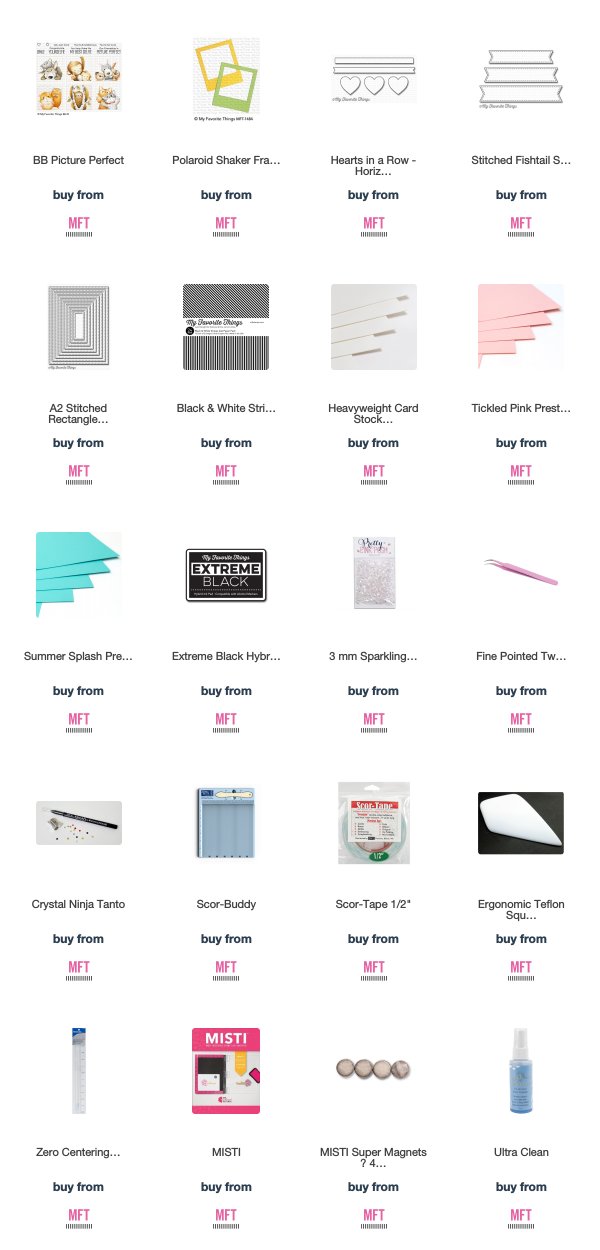
There are so many beauties to choose from, but I went with Sweet Spring and paired it with Basic Grey's Capella patterned paper.


Here is a peek inside.  The adorable ballerina bunny is also included in the stamp set. 

   
If you'd like to see all the other designer creations today using Jolinne, please lead over to Kim's blog at 11 AM EST for a full, linked list of participating designers.  

I'll see you soon.  I have been slaving stamping away in my stamp room. 

Monday, September 06, 2010

Make The Cut Tutorial: Creating a castle wall and window

Hi everyone!  Ready to use Make The Cut to cut all the pieces you'll need to create your own princess castle/tower?  You can see the finished project and tutorial on how to finish your project HERE.

Here is a quick peek at the project, before we get started, so you'll understand what we are making. :)


First, we need to create the bricks that will line the castle walls.  We are creating this from scratch, using only the tools provided in Make The Cut.  There is a huge satisfaction in creating something for FREE that you are imagining in your head.  It unleashes MUCH creativity. :)

Creating the Castle Wall Bricks

In Make The Cut, click the little gear at the top left of the screen, and then on that drop down menu, click on basic shapes


A box will pop up on your screen that includes various shapes available in Make The Cut to use in creating your own creations.  Choose rounded rectangle (double click on it) and it will pop up on your screen.  X out of the small box.


Now we have the rounded rectangle on our screen.  I want it to be sitting horizontally, but right now, it is vertical.  See the arrows on the sides and corners?  They are straight and all pointing outward. 


 Click on the shape again until the arrows change.  They should now be curved around the corners.  These are the arrows you need to have when you are rotating an image. 


To rotate your shape, hold down the Ctrl key on your keyboard, right-click on your mouse (and hold) while grabbing one of the corner arrows and rotate the shape.  By holding down the Ctrl key, your shape will rotate the shape in 15 degree increments, to ensure accuracy.  You can also rotate "freely" without holding down the Ctrl key.  Now, the shape is horizontal.


I sized it to 1.5" X 1".  To do this, in the upper bar of your screen, there is a lock icon.  Click on it to unlock.  Type in the measurements you want in the boxes to the left (width and height) and press enter.  The shape will pop to the size you typed in.  You can also manually drag the shape to the size you want by dragging out on the STRAIGHT arrows on the shape.


I needed a ton of these for my project.  Let's DUPLICATE!  :)  No need to recreate the wheel each time.  Once you get the shape and size you want, all you need to do is duplicate.  Right click on the shape, choose duplicate. (If you do not have duplicate as an option, you don't have the shape "selected".  Just click on the shape to select it - which means there is a "box" around it, and arrows around it).


You can adjust the number of times to duplicate a shape and the spacing between each one.  For this one, I wanted to fill an entire 12 X 12 sheet, so I played around with it until I found the magic numbers: 54 duplicates and .2 inches spacing.  You can space them as far apart as you want to.  Type in the numbers, and when you are happy, press OK. 


Now that the bricks are done, we need to CUT.  Be sure your Cricut is connected to your computer, is on, and has the paper loaded.  Now, on the computer screen, click on the scissor-in-a-circle icon at the top of the screen.  This is the box that will pop up.  You can adjust the speed of your cut.  Medium worked well for me.  Now CUT.


Creating the Castle Window

Now, lets create the castle window.  I had googled castles and knew I wanted a rectangle window with a rounded top.  If you have an idea in your head of what it will look like, you should be easily able to break it down into "shapes" to create it in Make The Cut.

Click on the gear at the top left of the screen, and click on basic shapes. This is the window that will pop up.  We need a square and a circle.  Double click on the shapes you want to put on your mat (circle and square), and then X out of the basic shapes window.


Click anywhere on the mat, and then click on the square, holding it down and move it away from the circle.

I want my window 2.5" inches wide, so I typed in 2.5 in the width box and pressed enter.  If you are making a square and the lock is LOCKED, you can type in just one measurement and it will pop to that size.  If you were creating a rectangle, you would UNLOCK it and type in both measurements before pressing enter.  Remember, if you make a mistake, just press UNDO (arrow to the left icon) and do it again.

Grab your circle and place it over the square as shown.  Make the circle 2.5" by typing in 2.5 and pressing enter.  It will pop to 2.5".  (shown in picture below this one).


Now, we need to place the circle on top of the square.  There is a little + in the middle of each shape.  I lined up the horizontal part of + with the top of the square.


Now we need to WELD the shapes together, so that the circle line isn't cutting into the square.  To do this, draw a "crop box" around both shapes.  Just place your cursor in the upper left corner OUTSIDE of the shape and drag until it surrounds both shapes.  (kind of like cropping a picture)

I circled an icon on the lower, left-hand side.  This is the WELD function.  Welding removes all "cut lines" from the center of shapes and makes them all one piece.  Click WELD.  Another "path" to do this with is: select your shapes, right click on them, shape magic, weld.


Here is our basic shape of the castle window. 


We need to create the "frame" of the window, so we'll need to duplicate the shape we created.  Select the shape (click on it), right click, duplicate.


I duplicated it 3 times just to be sure I had enough shapes to work with.


Be sure your LOCK is locked.  LOL  Now, select one of the shapes (click on it) and type in 3.5" for the width and press enter.  We need a bigger shape so we can create the window.  Keeping the lock locked, ensures your shape will stay in proportion. 


Using the + marks, line up a small and big castle window together.  Just line up the + marks and it will be a perfect match.


Select both shapes by drawing a "crop box" around them.


Click on the JOIN icon in the lower tool bar.  (or select the shapes, right click, shape magic, join)  This "cuts out" the middle, creating our castle window. 


Now, CUT.

You now have the bricks and castle window you'll need to create THIS project. 

Isn't Make The Cut fun?  I feel so... professional!  And coming from someone who can barely edit photos, that is saying something.  LOL

Remember, Make The Cut is on sale right now for $58.36 (save $21.59).  I can definitely say the program is the ONLY reason I wanted a Cricut.  I have not bought a single cartridge, and I have had so much with it. :) 

Here is one last peek at the project I created using the pieces I created for this tutorial:


Princess in a Castle

Hi and happy Labor Day! 

Today's project has been swimming around in my head for about 2 weeks, and yesterday I finally had the time to execute it.  :)  I purchased some tall paint can type tins after Christmas for 1/2 off and I had ONE left.  I decided it would make a good princess castle (tower... whatever).

I knew I wanted to make "bricks/stones" around the tower, but the thought of cutting and rounding all 4 corners was a bit scary.  Make The Cut to the rescue!  Here is the Make The Cut Tutorial: Creating a castle wall and window.


Please forgive my photography.  The tower is over 12 inches tall and it didn't fit well in my light box.  I took the top off on one of the pictures so you can see the whole effect. 


I took some pictures along the way, so I could show you the process.  :)

Here is the beginning stages of building my castle wall.  First, I cut some light grey card stock to the size needed for wrapping my tin.  I added all the red line adhesive I needed for that prior to doing anything else.  You can see a bit of that to the upper left of this picture.  After I had my piece sized and ready, I began laying out my bricks.  I used 2 red line dots to adhere each one.  Each brick was sponged using going grey ink before it was taped down.  I staggered them as shown.


I wanted to show you the card stock that once held all the grey bricks.  Have I mentioned that Make The Cut saved me SO much time with this project?


Here are all my bricks laid out and adhered.  I skipped the bricks that would overlap the other side (as shown).


I wrapped the finished piece around my tin like this:


Then, I adhered the last 4 bricks.  This allowed me to have a consistent pattern around the tin and masks the seam quite a bit. :) 


I grabbed my castle window (created with Make The Cut) and put red line dimensionals all the way around it. 


Then, I used the inside piece of the window to roughly cut the shape with my Pure Innocence Princess on it.


I added tulle for some princess-like drapes on the inside of the frame, and then put red line tape over that so it would adhere to the tin.


Here is the finished project:


For the cone top, I cut a 7 1/4" circle, then cut a slit from the mid point, down (radius).  I then formed it into a cone shape and adhered in place.  To adhere to the lid, I made flaps inside and added red line dimensionals to the flaps.  When I put it down on the lid, the flaps adhered to the lid, holding it in place.  The "pole" holding the sentiment flag is a bamboo BBQ skewer that I colored dark grey with a W7 Copic marker.  It is held in place by glue dots on the inside of the cone top.


This will make a nice gift for a pretty princess, filled with some fun bath products or maybe a nail kit.  You could do this same thing with any sized can or tin. 

Stamps: Pure Innocence Princess
Ink: Memento black, going grey
Paper: Going Grey, Basic Grey, Basic Grey Olivia patterned paper, white
Accessories: Copic markers, tulle, Make The Cut, sponge, red line tape

Now you can head over to the Make The Cut tutorial for step-by-step directions on how to create all the pieces you'll need for this project.

Have a great day and I'll see you soon!

Friday, September 03, 2010

I Simply Adore You... AND this little cutie

Hello everyone and thanks for popping by today. 

I don't have much to blab about today.  This is just a card I made for fun.  It uses Being Cute is What I Do.  I adore this little girl with flared pants and piggie tails.  She must not be "into fashion" like my girls are.  Doesn't she know that skinny jeans are all the rage?  LMBO  Now I, being from the MC Hammer pants generation, does not understand this skinny jeans thing.  I was MUCH cooler in my slightly baggy jeans, that I folded over on the bottom and rolled up a couple times.  And let's not even get it in to the hair.  Let's just say that this PI's piggies are WAY cuter than hair as big as a lion's mane.  Trust me.   

Speaking of her hair, I colored it using my Copic W's.  I love the way Kerry colors her PIs with "black" hair, and I wanted to give it it a try. 


That's it for today!  See you soon and have a wonderful weekend!

Thursday, September 02, 2010

Make the Cut: How to alter an SVG file

Hi everyone!  It's time for another Make The Cut tutorial!  Make The Cut is a computer program that works with your Cricut (and many other electronic cutters).  It lets you do some AMAZING things with it.  I LOVE it.  You can purchase it by clicking one of the links above, OR by clicking on the link in my side-bar.  It is on sale right now for $58.36 (save $21.59).

Today, I am going to show you to how to alter an existing SVG cut file.  SVG cut files are available all over the place.  You can purchase them for small amounts of money AND find some for FREE!  (just google whatever you are looking for with SVG and see what you can find)  Remember the Fred Bear in a Hammock card?  I found it with a simple google search and it was FREE!  :) 

Here is the project I created using the box template I altered in this tutorial:


I am using the Berry Ensemble from MFT for this tutorial.  I designed both of them, but I want to show you, that even with purchased templates, you can be your OWN designer and change them to fit your needs.  Ready to feel like a graphic designer?  I know I always feel a huge sense of accomplishment when I can actual make something using the software, using my limited computer skills.  LOL

First, you need to import the basket from the Berry Ensemble cut file, and size it to 7 X 7.  If you don't know how to do this, I have a complete tutorial here:  

Make The Cut: How to import an SVG file, size, and cut
 
I do go through the basic importing process for this tutorial as well, though.  The tutorial above is more detailed. :)
 
Import your SVG.  File>>>Import>>>SVG
 

Look for the cut file you want to use.  I put all mine in "my pictures".  Just be sure to know where you save them, so you can find them easily.  Here, you can see I have located my strawberry box file.  double click on the file you want


After you double click, it will pop up on your screen as shown.  We need to size it to 7 X 7.  You can do this two ways:
  • Use the ruler/grid on your mat and manually enlarge it by pulling out on the red arrow in the corner.
  • In the upper center, look for the boxes labeled H and W, that is the height and width of your image.  Type in 7 for the height and 7 for the width to snap your shape to that size.  See the little lock to the right of those boxes?  If you unlock it (by clicking on it), you can lose the proportions of your image.  Sometimes you WANT to do that, but when you are working with pre-made templates, you'll want to make sure that stays locked.
You can see in the picture below, I have typed in 7 already.  Then press enter.


Your template will now snap to 7 X 7.  This is the size I cut for my project today.


The strawberry box was designed to look like a strawberry carton, of course... and that has some slits in the carton, but what if you want to use the box, but NOT have the slits on it?  We can do that with Make The Cut.  YOU can do it!  :) 

In the lower, left-hand side of your screen, you will see some little shape icons.  If you hover your cursor over them, a text box will pop up telling you what each one is.  You need to click the one labeled BREAK.  I circled it in red for you.
  • note: if you are trying to "break" and the button is grayed out, or not working, you probably don't have the shape (template) selected.  To select the shape, simply click on it, OR draw a little box around it by clicking and dragging (similarly to what you would do if you were cropping a picture)
Now, each part of the template is separate and can be moved, deleted etc.  You can see an outline of each part, below.


Like I said before, I did not want to use the slits, so all I am going to do is move the part I DO want (the basic template without the slits) away from the slits, so I can delete them.  Just grab the shape by clicking on it and drag it to the right
  • note: if you are having a hard time moving (dragging) something, always click on a blank spot on your mat, and then try again. 

Now, using a "crop box", draw a box around the slits to select them.  Right click IN the selected area, and click on delete.


They will all be deleted.  Now, move your template back over.  It is now slit-free and ready to cut.  Although it seems like there are a lot of steps, you can do all that in about a minute once you learn the program.  :)

All you would do now is press the CUT icon in the top tool bar (pair of scissors in a circle) and cut your box out. 


In the interest of being thorough and REALLY teaching you how to do things in this program, let me show you to delete single parts of the template.  Follow the steps above, up to the part where you "break" the image.  Click break, then click any clean space on the mat.  Hover over one of the slits.  It will be outlined in RED when you are hovering over it.  Click on one of the slits, which will "select" the slit.  Press delete on your keyboard OR right click while on the selected portion of the template and choose delete. 

That will remove only one slit at a time.  Maybe you want just 2?  LOL 


 If you have altered something, and there is a chance you'll want to use it again, you'll want to save it.  The benefit to this, is that when you save it as a Make The Cut file, when you open it, it will be sized just like you had it, so it will be instantly ready to cut.  Just click on the disk icon to the upper left and choose a file name (mine was cherry tomato box) and press save.  Now, it's available for another time. 


Another cool thing you can do with the program is EXPORT your project as an SVG.  This will allow you to use it with other cutting devices that you can't cut with directly from Make The Cut.  You can export as SVG, AI, PNG, and PDF.  The awesome thing about the PDF option, is that you can print out your own file to keep in a binder so you know what you have, OR to print out and cut by hand if you want to do that.

Here, I am exporting as an SVG.


You follow pretty much the same steps as if you were saving, but this time it will export it.  The exported file will go wherever you send it.  I send mine to my pictures.


This is the notification box that pops up after you have successfully exported your project.


I used the box I cut from this altered template, along with the Designer Basket & Apples template to complete my project.   All the pieces were cut using Make The Cut and my Cricut Expression (Walmart, $249).

I used the apple template to cut "cherry tomatoes".  Each one contains 2 pieces of candy.  :)  Assembly instructions for the basket and the cherry tomatoes are included with the templates, when purchased from MFT.


I hope you found this tutorial helpful.  :)  There are more to come.  If you have any specific questions or tutorial requests, please feel free to e-mail me at texasjodylynn@yahoo.com or leave a comment below.  Please be sure to include YOUR e-mail address if you ask a question that requires a response within the comment section. :) 
 
Stamps: Who's That Harvest Girl
Ink: Memento brown
Paper: Kraft, brown, white
Accessories: Berry Ensemble Template, Designer Basket & Apples template, buttons, twine, punch, ribbon, scor-pal, sponge, Copic markers, Sunshine Die-namics die, Cricut Expression, Make The Cut software